
IN-APP TEXT EDITOR
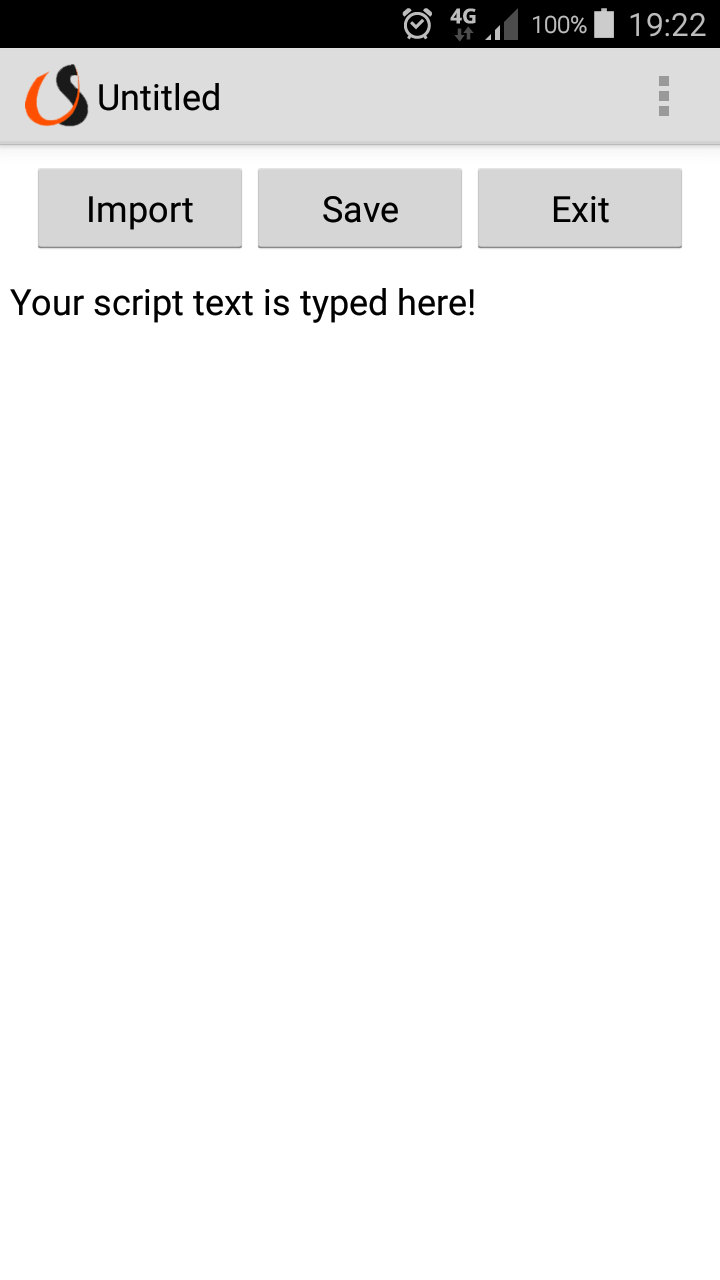
Some users may prefer the convenience of using the in-app Text Editor facility if they feel
comfortable with the size of the virtual keyboard, or their device offers input via an external
keyboard. The Text Editor provides the following basic functions:
-
Basic Editing:
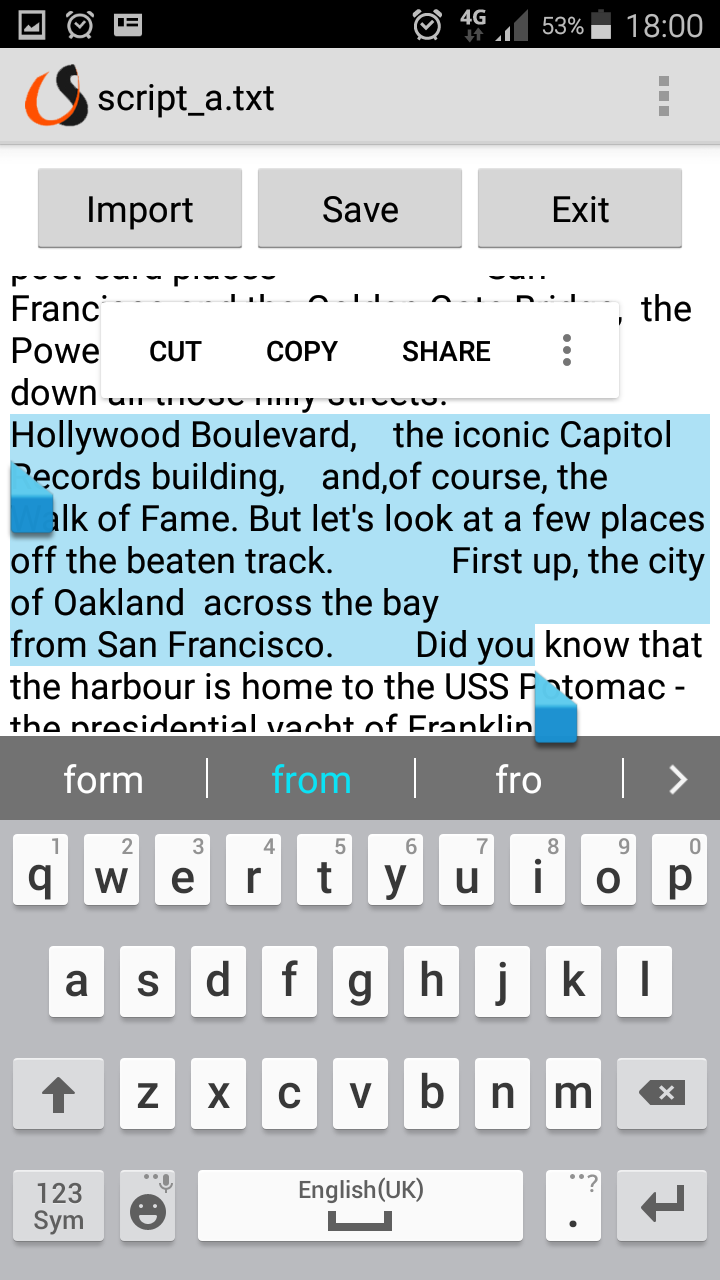
On entering the Text Editor you may immediately start typing your script. If using an external keyboard, use the standard keyboard operations for selecting, deleting, copying and pasting. If using the virtual keyboard, perform a long press or a double tap inside the text editor window to call up the system selection control and edit menu. Select text by using the left and right anchors of the selection control. Use the edit menu to perform operations such as Cut, Copy, Paste and Select All. -
Saving your Script:
Press the Save button to call up the save dialog. Enter the following details:- The name of the script file (you do not have to provide the .txt extension, or the _ts suffix if providing a Text Slide file)
- Use the radio button control to indicate the script type. Options are Scroller or Text Slide.
-
Importing a Script:
Press the Import button to import a previously written script for inspection and editing. -
Changing the Text Editor Font Size:
Go to the Menu icon (or device Menu button, if appropriate) and select the Font Size item. Use the slider control to increase or decrease the font size. -
RTL Support:
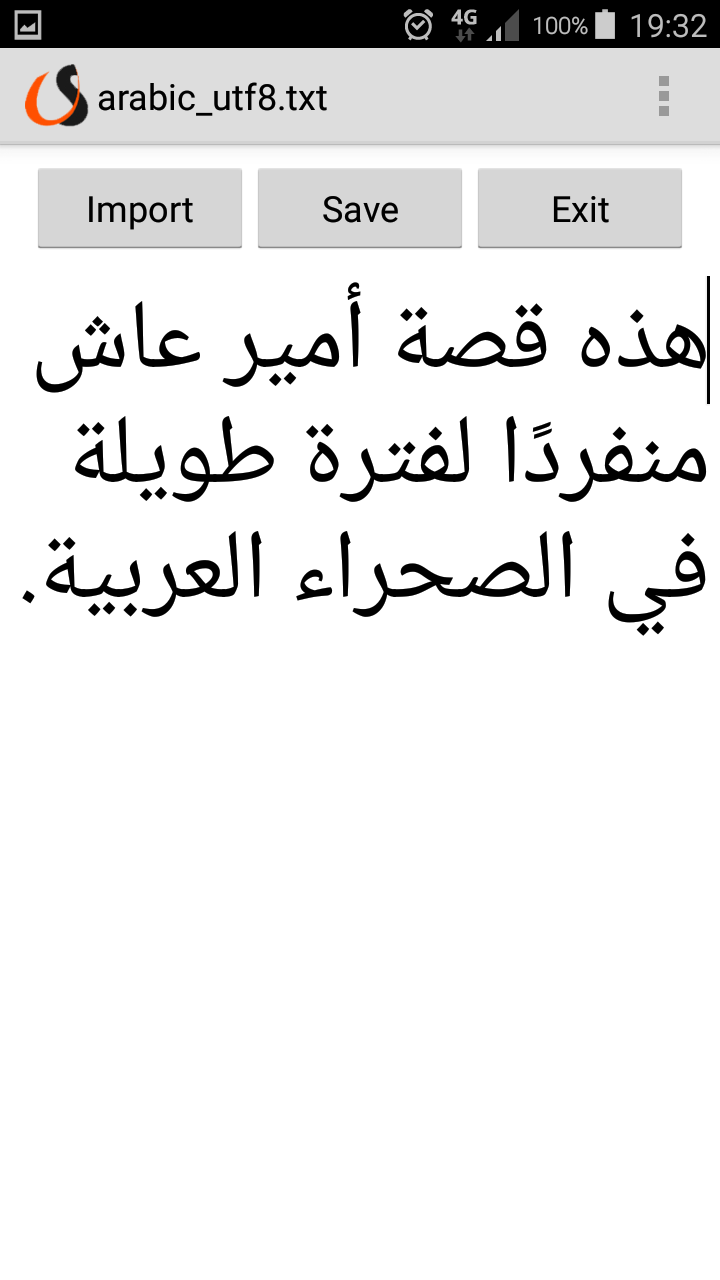
The Text Editor supports RTL (right-to-left) languages such as Arabic and Urdu. Select the required language input keyboard and type your script in the usual manner. The cursor will move from the right of the page to the left of the page as you type. If you have imported a script which was written on a desktop PC using a text editor such as Notepad, ensure that you have saved it in UTF-8 format.